Guide status: Needs review
Brightdesk To Do
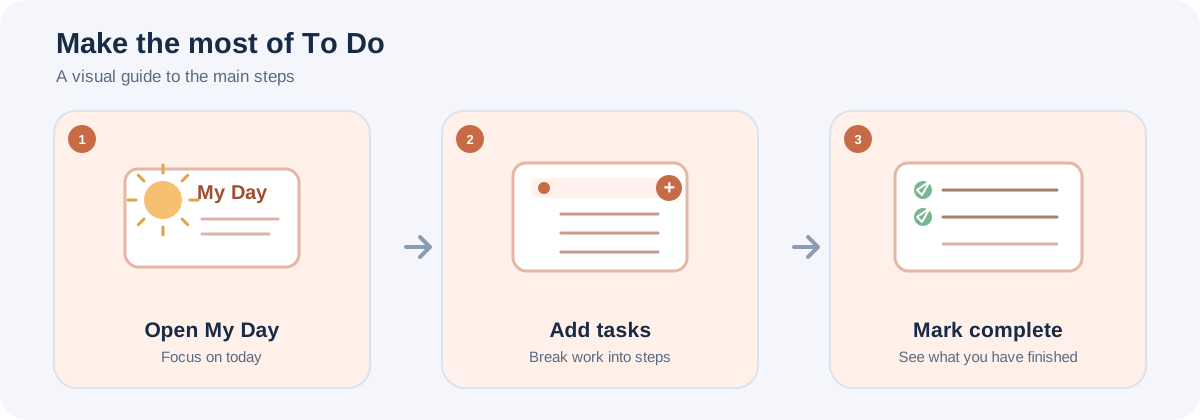
Illustrative workflow, not a screenshot of the Brightdesk interface.
Use To Do to keep track of personal tasks, due dates and priorities.
Add a task
- Open the My Day view or another task view.
- Enter a task name in Add a task.
- Choose Add task.
- When you add a task from My Day, it is automatically added to that view.
Add details or edit a task
- Find the task you want to update.
- Choose Edit on its task card.
- Change the Task title, add Task notes, choose a Due date or set its Priority to Low, Normal or High.
- Choose Save. Choose Cancel to close the editor without saving those changes.
Organise your tasks
- Choose My Day to see tasks added to today’s list.
- Choose Important to see tasks marked as important.
- Choose Planned to see tasks that have a due date.
- Choose Tasks to see unfinished tasks.
- Choose Completed to review finished tasks.
- Use Search tasks and notes to find a task.
- Use the star control to Mark as Important or Remove from Important.
- Use the plus/minus control to Add to My Day or Remove from My Day.
Complete or restore a task
Select the checkbox beside a task to mark it complete. Open Completed and select the checkbox again to restore it to the unfinished tasks.
Choose Delete only when you intend to remove a task.
Save your work
Your task information is saved on this device as you work. Check the local-save status in the workspace.
Current feature boundaries
To Do currently supports personal local task lists. Operating-system notifications, recurring reminders, shared task lists, customer accounts and cloud sync are not included in the current stated scope.
Guide status
Needs review. These steps are based on the current To Do interface and source. They still need to be run from start to finish in a current installed desktop build before the guide can be approved for customers.