Guide status: Needs review
Brightdesk Sheets

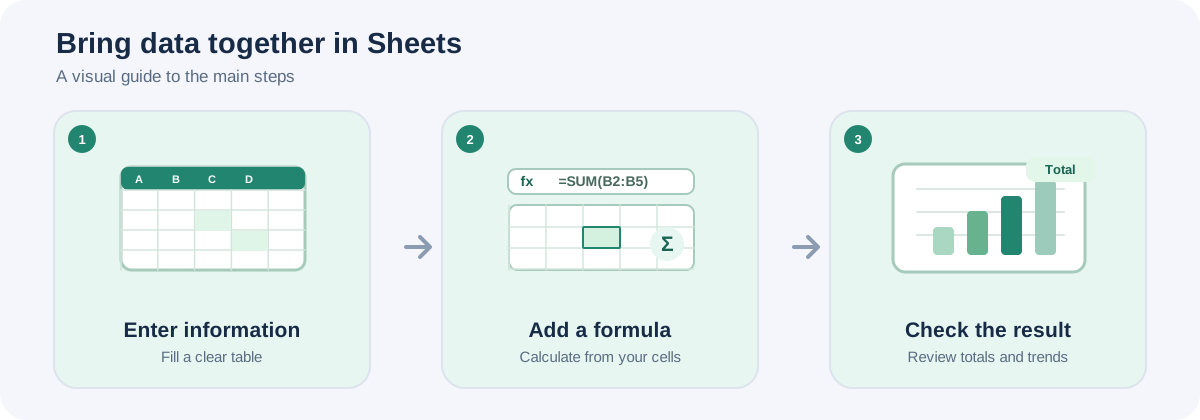
Illustrative workflow, not a screenshot of the Brightdesk interface.
Use Sheets to organise information in a grid and calculate values with supported formulas.
Enter information
- Open Brightdesk Sheets. A new spreadsheet opens with the title Untitled spreadsheet.
- Click a cell in the grid, such as A1.
- Type a value into the cell.
- Press Enter to save the value and move down one row.
- Select the title field to give the spreadsheet a useful name.
Enter a formula
- Select the cell where you want the answer to appear.
- On the Home tab, find the selected cell reference (for example, A1) beside the formula input.
- Enter a formula beginning with an equals sign. For example,
=A1+B1adds two cells. - Press Enter or move focus away from the formula input to apply the change.
- Check the calculated value in the grid.
The current calculation engine supports basic arithmetic and these functions: SUM, AVERAGE, MIN, MAX, COUNT and COUNTA. A range formula can look like =SUM(A1:A5).
Add rows and columns
- On Home, choose + Row or + Column.
- You can also open Insert and choose New row or New column.
Sort information
- Select a cell in the column you want to sort.
- Open Data.
- Choose Sort A → Z or Sort Z → A.
- Check the grid after the sort.
The sort acts on the sheet rows using the selected column.
Open, save and export
- Choose Open to open a supported workbook or CSV file.
- Choose Save project to keep Brightdesk project data on this device.
- Choose Export to create an available CSV or XLSX output.
Keep a Brightdesk project copy when you plan to continue editing the workbook.
Current feature boundaries
Sheets is a basic spreadsheet foundation. VBA and macros, pivot tables, advanced formula coverage, complex workbook features and exact Excel round-trip compatibility are not promised.
Guide status
Needs review. These steps are based on the current Sheets interface, calculation engine and product documentation. They still need to be run from start to finish in a current installed desktop build before the guide can be approved for customers.