Guide status: Needs review
Brightdesk Pages

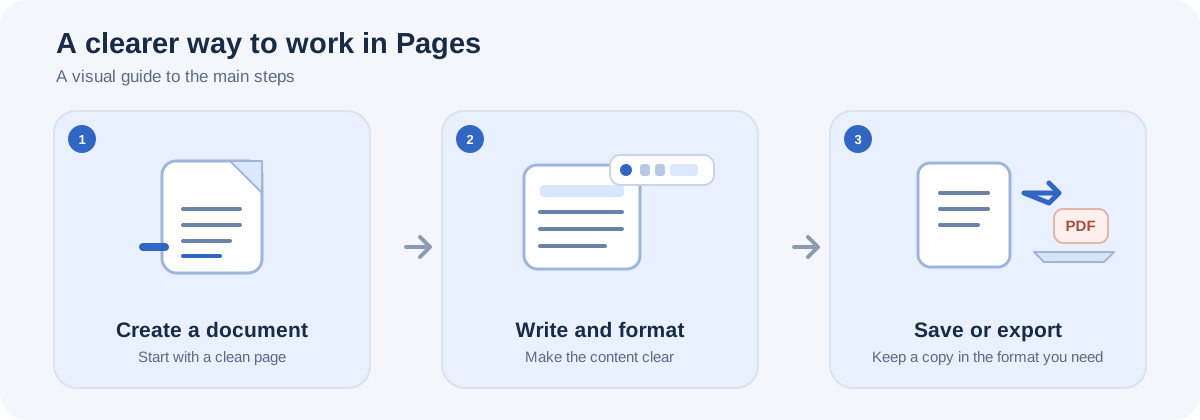
Illustrative workflow, not a screenshot of the Brightdesk interface.
Use Pages to write letters, reports and other text documents.
Create a document
- Open Brightdesk Pages. A new document opens in the writing workspace.
- Select the title field, which starts as Untitled document, and enter a name.
- Click in the document writing area and start typing.
- Your edits are saved locally as you work. Check the status at the top of the workspace.
Format your writing
- Select the text you want to format.
- Open the Home tab.
- Choose Bold, Italic or Underline.
- Choose Heading 1 or Heading 2 to create a heading.
- Use Bullets, Numbering or Quote to format paragraphs.
- Use Undo or Redo when you need to step backwards or forwards through an edit.
Insert content
Open Insert and choose one of the available options:
- Table 2 × 2 to insert a small table.
- Horizontal line to separate sections.
- Date to insert the current date at the cursor.
Set up the page
- Open Layout.
- Under Page setup, choose a Paper size: A4, US Letter or US Legal.
- Choose Orientation: Portrait or Landscape.
- Choose a Margins preset: Normal, Narrow, Moderate or Wide.
Review and view your document
- Open Review and choose Word count to see the number of words.
- Use Spell check to switch the editor’s spell-check setting on or off.
- Open View to change the zoom or switch Focus mode on or off.
Save and export your document
- Choose Save project to save Brightdesk project data.
- Choose Open to open supported existing project or document data.
- Choose Export in the top bar to see the document formats available in your installed version.
- To create a PDF copy, open Home and choose PDF in the Export group.
Current feature boundaries
Pages provides core document writing, formatting and page setup. It is not full word-processor feature parity. Advanced page-layout tools, macros, collaboration and perfect round-trip conversion are not promised.
Guide status
Needs review. These steps are based on the current Pages interface and source. They still need to be run from start to finish in a current installed desktop build before the guide can be approved for customers.